 Connexion
Announcing Native BM25 Ranking in AlloyDB and Cloud SQL
Vector search is a critical component of generative AI, retrieval-augmented generation (RAG), and data agent architectures, but sometimes vector search alone isn't enough. While vector embeddings are incredible at understanding conceptual meaning, they stumble on specific alphanumeric IDs and exact product SKU numbers. To build truly robust search and AI applications, you may need the combination of semantic vector search and traditional exact keyword full-text search — what we call hybrid search.
In search, Best Matching 25, or BM25, is a key algorithm used to estimate how relevant a document is to a given query. Until today, if you wanted BM25 ranking with AlloyDB or Cloud SQL, you needed to add an additional full-text search backend. This introduced data silos, sync lags, and operational complexity. Today, we are eliminating the friction of maintaining a separate full-text search backend altogether, with the preview of the native BM25 index in AlloyDB and Cloud SQL for PostgreSQL 17+, made possible through the open-source pg_textsearch extension created by Tiger Data.
Now, with a unified hybrid search backend, you no longer need to provision, manage, or pay for separate systems to get state-of-the-art full-text retrieval. It all happens directly inside your database, where your operational data lives, delivering:
-
Industry-standard keyword ranking: Powered by Tiger Data's
pg_textsearch, bring lightning-fast, C-optimized BM25 scoring directly to your Postgres tables. -
No complexity, total consistency: Eliminate the data duplication, ETL pipelines, and synchronization lag that you get when you maintain multiple backends for vector and full-text retrieval.
-
Supercharged semantic search (AlloyDB exclusive): Get up to 6x and 10x faster vector search queries (when compared to standard PostgreSQL) with ScaNN and HNSW index types.
Why pg_textsearch?
If you’ve used PostgreSQL's built-in ts_rank for full-text search at any meaningful scale, you already know its limitations. Ranking quality degrades as your corpus grows. There’s no support for inverse document frequency, so common words carry the same weight as rare ones. There’s no term-frequency saturation, so a document that mentions "database" 50 times outranks one that mentions it once.
BM25 is the information retrieval gold standard, providing inverse document frequency (rarer terms matter more), term frequency saturation (repetition doesn't dominate), and document length normalization. You can learn more in this blog post by Tiger Data about how they built a BM25 search engine on PostgreSQL pages.
Full-text search example
Here’s how to get started with BM25 full-text search on both AlloyDB and Cloud SQL. Consider a sample table, cymbal_products, that contains the unique identifier uniq_id, a product_name column, a product_description column containing a text description of each product, and a generated product_embedding column. cymbal_products contains information on various retail products, including indoor and outdoor plants.
Index creation
To use BM25, enable the pg_textsearch extension.
- code_block
- <ListValue: [StructValue([('code', '-- Install pg_textsearch extension\r\nCREATE EXTENSION pg_textsearch;'), ('language', ''), ('caption', <wagtail.rich_text.RichText object at 0x7f15a7c5b810>)])]>
Create the index on the product_description column from the cymbal_products table.
- code_block
- <ListValue: [StructValue([('code', "-- Create the native BM25 index on the content column\r\nCREATE INDEX idx_docs_bm25 \r\nON cymbal_products \r\nUSING bm25 (product_description) \r\nWITH (text_config='english');"), ('language', ''), ('caption', <wagtail.rich_text.RichText object at 0x7f15a7c58fd0>)])]>
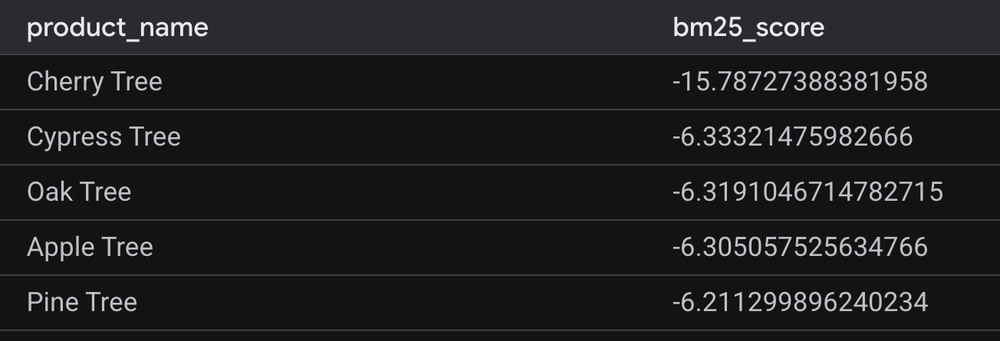
A BM25 full-text search query can be executed using the <@> special operator. In the snippet below, we search for ‘cherry tree’.
- code_block
- <ListValue: [StructValue([('code', "-- Full text search query\r\nSELECT product_name, product_description <@> 'cherry tree' AS bm25_score \r\nFROM cymbal_products\r\nORDER BY bm25_score \r\nLIMIT 5;"), ('language', ''), ('caption', <wagtail.rich_text.RichText object at 0x7f15a7c5a850>)])]>
Sample output is shown below. A more negative score indicates a stronger relevance match.
AlloyDB hybrid search example
Setting up a hybrid search system in AlloyDB is simple. You can create both your vector and keyword indexes on the same table and merge the results seamlessly using the hybrid search user-defined function (UDF).
Vector index creation
Here is how to create a ScaNN vector search index:
- code_block
- <ListValue: [StructValue([('code', '-- Install vector extension\r\nCREATE EXTENSION vector;\r\n\r\n-- Install scann extension\r\nCREATE EXTENSION IF NOT EXISTS alloydb_scann;\r\n\r\n-- Create scann vector search index \r\nCREATE INDEX cymbal_products_embeddings_scann ON cymbal_products USING scann(product_embedding cosine);'), ('language', ''), ('caption', <wagtail.rich_text.RichText object at 0x7f15a7c590d0>)])]>
Hybrid search
AlloyDB provides an out-of-the-box hybrid search UDF that makes it very simple to run hybrid search queries. The UDF merges the ranked results from each search component into a single, unified list using the Reciprocal Rank Fusion (RRF) algorithm. This query utilizes the UDF to perform a vector search for ‘trees that grow taller than houses’ and a keyword search for ‘California’ in the product description.
- code_block
- <ListValue: [StructValue([('code', 'CREATE EXTENSION google_ml_integration;\r\n\r\nSELECT *\r\nFROM ai.hybrid_search(\r\n search_inputs => ARRAY[\r\n \'{\r\n "data_type": "vector",\r\n "weight": 0.5,\r\n "table_name": "cymbal_products",\r\n "key_column": "uniq_id",\r\n "vec_column": "product_embedding",\r\n "distance_operator": "public.<=>",\r\n "limit": 10,\r\n "query_vector": "ai.embedding(\'\'text-embedding-005\'\', \'\'trees that grow taller than houses\'\')::vector"\r\n }\'::JSONB,\r\n \'{\r\n "data_type": "text",\r\n "weight": 0.5,\r\n "table_name": "cymbal_products",\r\n "key_column": "uniq_id",\r\n "text_column": "product_description",\r\n "limit": 10,\r\n "ranking_function": "<@>",\r\n "query_text_input": "California"\r\n }\'::JSONB\r\n ],\r\n);'), ('language', ''), ('caption', <wagtail.rich_text.RichText object at 0x7f15a7c5b850>)])]>
As shown in the sample output below, results are ranked in descending order of their RRF scores.
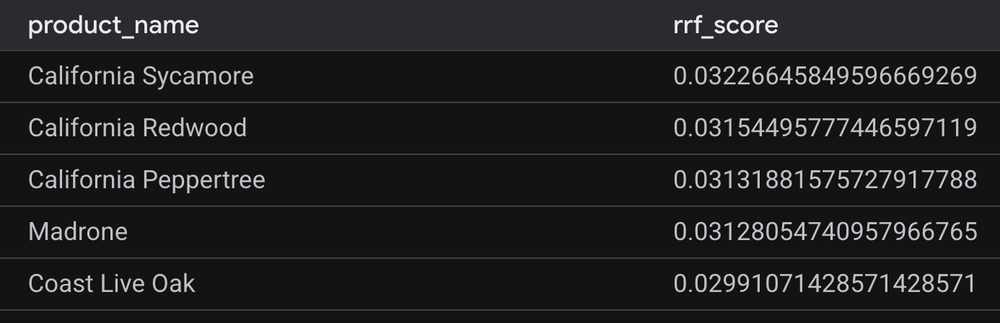
Here, hybrid search bridges the gap between semantic intuition and exact keyword matching. While vector embeddings excel at grasping conceptual queries, like "trees that grow taller than houses", traditional full-text search provides the pinpoint precision needed for strict identifiers like "California." By fusing the two, AlloyDB helps ensure your application prioritizes highly specific, locally relevant results like ‘California Sycamore’ right at the top of the list.
Cloud SQL hybrid search example
In Cloud SQL, you can create both your vector and keyword indexes on the same table and merge the results seamlessly using Common Table Expressions (CTEs) and coalescing the RRF score, as shown below.
Vector index creation
Here is how to create an HNSW index in Cloud SQL.
- code_block
- <ListValue: [StructValue([('code', '-- Install vector extension\r\nCREATE EXTENSION vector;\r\n\r\n-- Create an HNSW index on the embedding column for fast approximate nearest neighbor search\r\nCREATE INDEX product_hnsw_idx ON cymbal_products USING hnsw(product_embedding vector_cosine_ops);'), ('language', ''), ('caption', <wagtail.rich_text.RichText object at 0x7f15a7c5ac50>)])]>
Hybrid search
Here is the hybrid search query.
- code_block
- <ListValue: [StructValue([('code', "CREATE EXTENSION google_ml_integration;\r\n\r\n-- BM25 keyword results\r\nWITH keyword_results AS (\r\n SELECT uniq_id, product_name, \r\n ROW_NUMBER() OVER (ORDER BY product_description <@> 'California') AS rank_kw\r\n FROM cymbal_products\r\n ORDER BY product_description <@> 'California'\r\n LIMIT 10\r\n),\r\n-- Semantic vector results\r\nsemantic_results AS (\r\n SELECT uniq_id, product_name, \r\n ROW_NUMBER() OVER (ORDER BY product_embedding <=> google_ml.embedding('text-embedding-005', 'trees that grow taller than houses')::vector) AS rank_vec\r\n FROM cymbal_products\r\n ORDER BY product_embedding <=> google_ml.embedding('text-embedding-005', 'trees that grow taller than houses')::vector\r\n LIMIT 10\r\n)\r\n-- Reciprocal Rank Fusion (RRF) to merge and score both lists\r\nSELECT COALESCE(k.uniq_id, s.uniq_id) AS uniq_id,\r\n COALESCE(k.product_name, s.product_name) AS product_name,\r\n COALESCE(1.0 / (60 + k.rank_kw), 0) + COALESCE(1.0 / (60 + s.rank_vec), 0) AS rrf_score\r\nFROM keyword_results k\r\nFULL OUTER JOIN semantic_results s ON k.uniq_id = s.uniq_id\r\nORDER BY rrf_score DESC\r\nLIMIT 5;"), ('language', ''), ('caption', <wagtail.rich_text.RichText object at 0x7f15a7c5b150>)])]>
The resulting output is identical to the AlloyDB hybrid search results shown above.
Watch it in action
Watch how this all comes together in this demo video.
Relevant resources
We are incredibly excited to work with Tiger Data and cannot wait to see how you leverage native BM25 support to build faster, smarter, and simpler AI applications. Turn on the pg_textsearch extension today, and experience the ultimate hybrid search engine experience with AlloyDB and Cloud SQL.
Want to get started? Check out”
-
AlloyDB resources
-
New to AlloyDB? Discover AlloyDB with a 30-day free trial
-
Cloud SQL resources